Multi-Factor Authentication (MFA) provides additional security for your account. You may be asked to set up MFA when your account is created or later if the feature is activated by an administrator. You can read more about MFA and how it protects your account here.
Note: You will need to download an authenticator app to your mobile device to set up MFA.
How do I set up Multi-Factor Authentication (MFA)?
If you need to set up MFA - at account setup or later - you will not be able to complete registration or log into your account until you have done so. The following steps guide you through the MFA setup process.
1. You will be presented with a screen that looks like this.
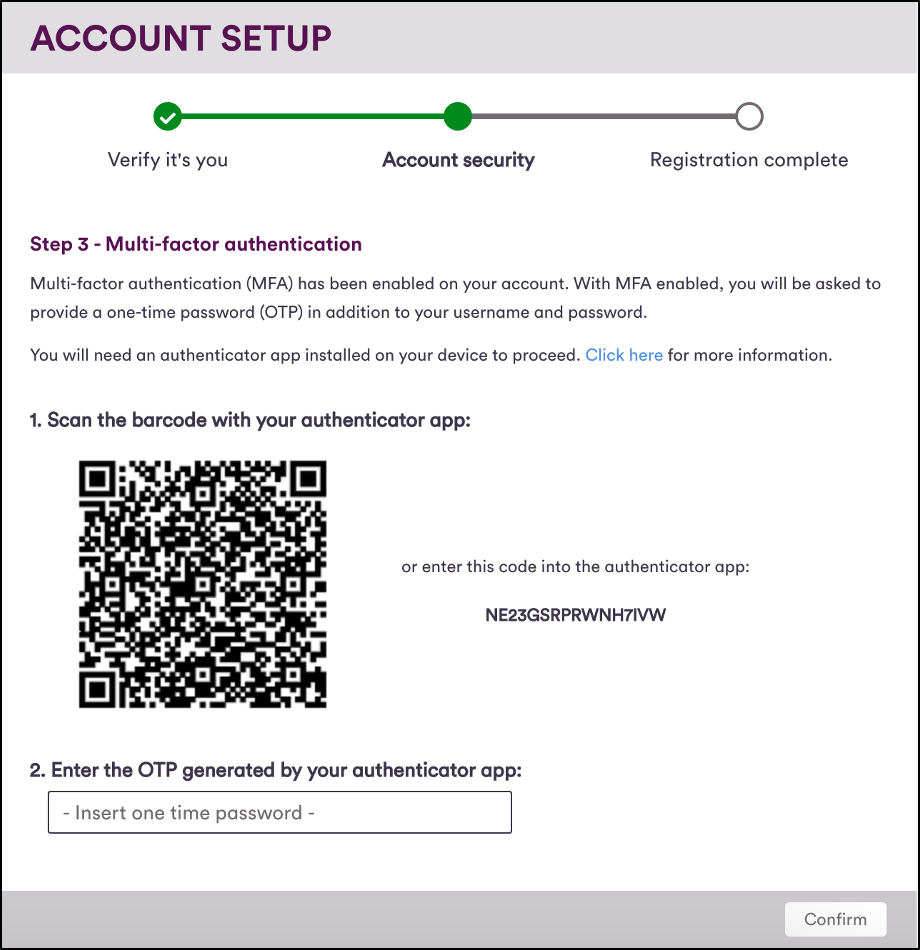
2. Download and install an authenticator app on your mobile device. You can use most popular authenticator apps, including Google Authenticator, Microsoft Authenticator, Open TOTP, etc. It you are unsure about which app you should use, please contact your administrator.
Note: We recommend making sure your device is updated to the latest software version before setting up MFA. This will help to make sure the set up goes smoothly.
3. Use the authenticator app to scan the QR code displayed on your browser screen. If this doesn't work, or your device doesn't have a camera, you can manually enter the number displayed alongside the QR code into your authenticator app.
4. Once you have completed step 3, your authenticator app will display a One-Time Passcode (OTP). Enter the OTP into the box on screen and click Submit.
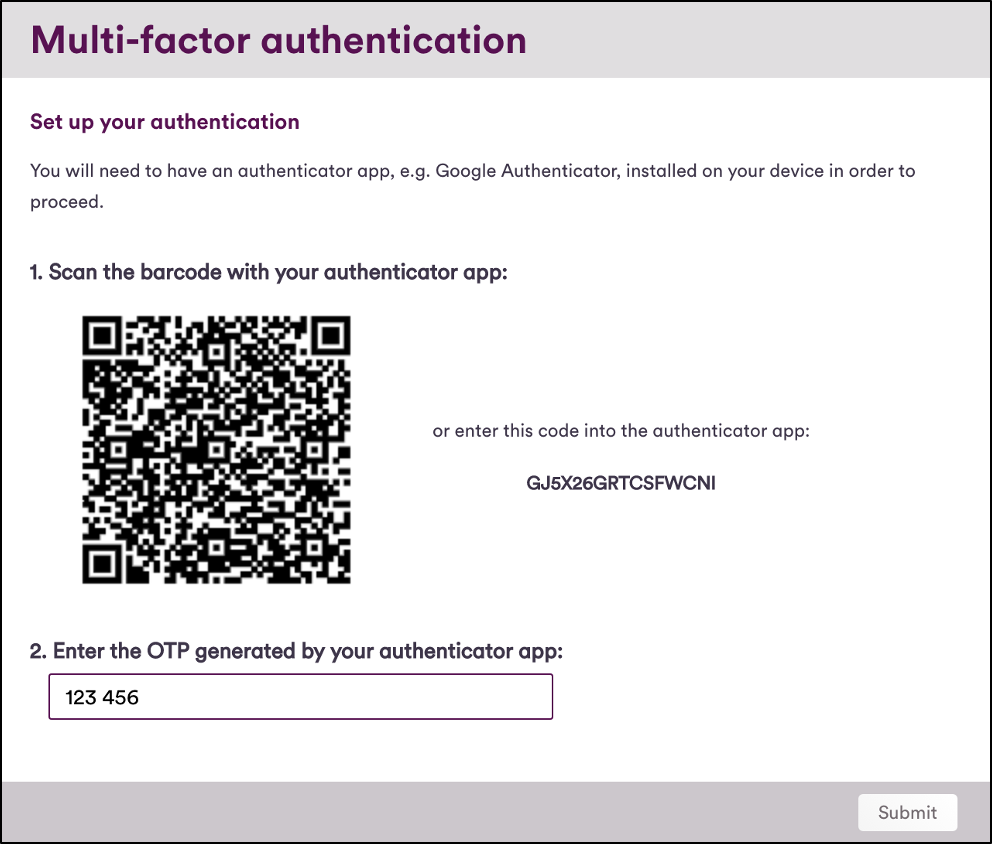
5. You will be provided with a set of MFA Recovery Codes which allow you to access your account if you lose the device containing your MFA authenticator app. Either download or make a note of your MFA recovery codes, click the check box and click Continue to proceed.
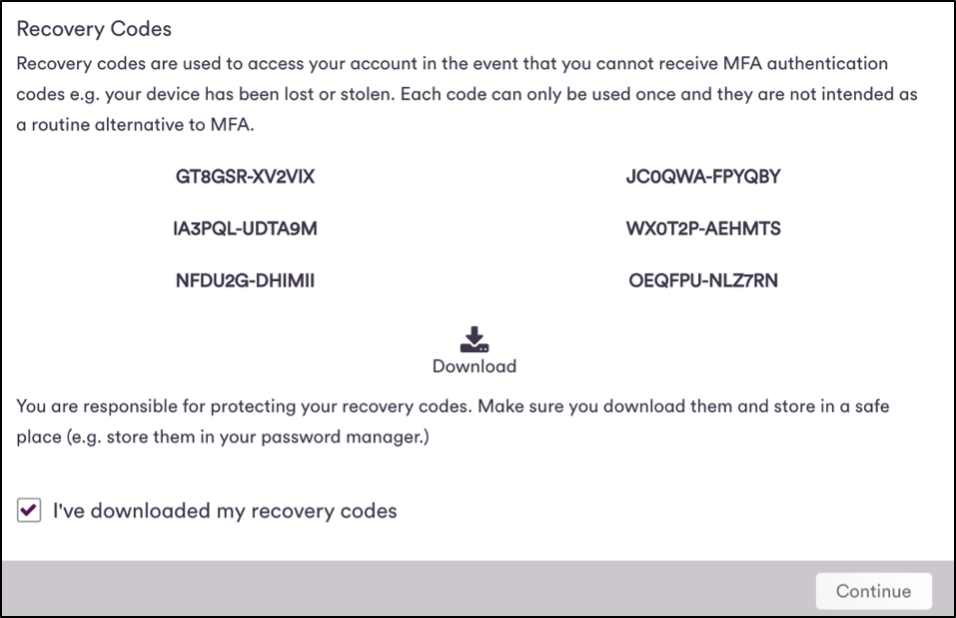
Note: Treat your recovery codes as if they are passwords to your account and store them somewhere safe.
6. MFA setup is now complete.